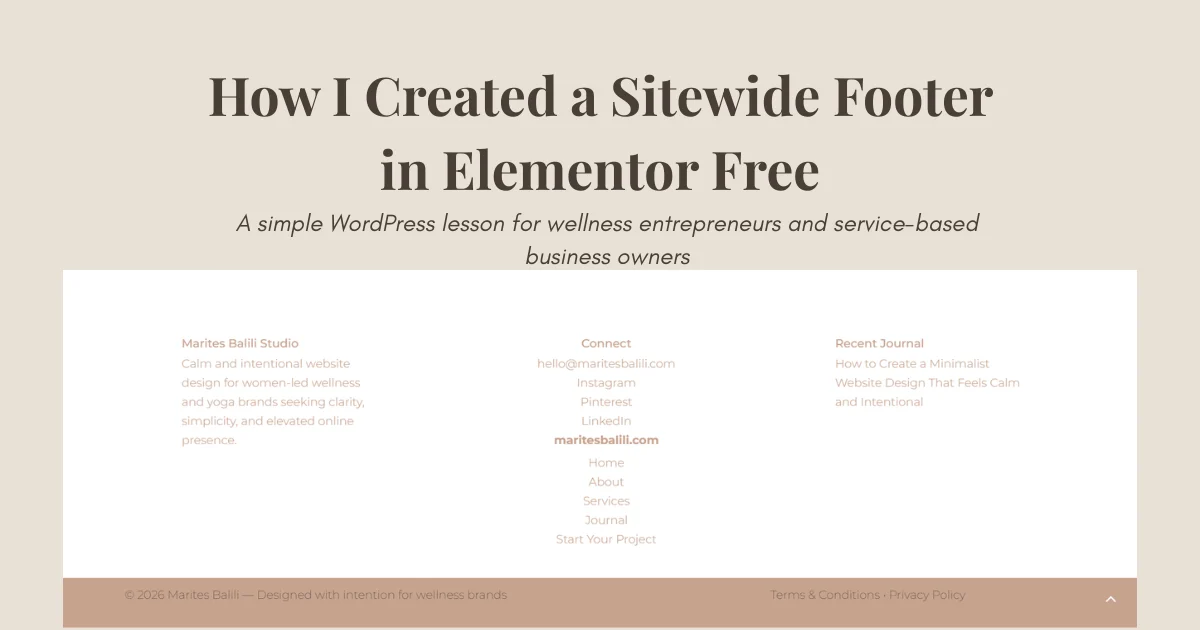
When I first built my website using Elementor Free and Astra, I created a minimalist sitewide footer design that I was proud of.
It looked clean, intentional, and aligned with the calm aesthetic I wanted for my brand.
There was only one problem:
The footer only appeared on my homepage.
As I continued refining my minimalist WordPress website, I realized that visitors landing on my About page, Services page,
or Journal posts never saw my footer at all.
If you’re using Elementor Free and running into the same challenge, you’re not alone.
In this article, I’ll share the exact process I used to create a sitewide footer without purchasing Elementor Pro.
Why My Footer Only Appeared on the Homepage

Like many beginners, I built my footer directly inside my homepage using Elementor Free.
At first, this seemed perfectly fine.
The problem was that Elementor Free doesn’t include Theme Builder functionality,
which means it cannot create global headers and footers out of the box.
As a result, my footer was simply another section on the homepage instead of a sitewide website element.
This meant:
-
My branding wasn’t consistent across pages.
-
Visitors couldn’t easily navigate from blog posts.
-
Contact information wasn’t visible throughout the website.
-
The user experience felt incomplete.
Understanding the Limitation of Elementor Free
One of the biggest lessons I learned was understanding the difference between:
Page Sections
These only appear on the page where they are created.
Global Templates
These appear throughout the website.
Elementor Pro includes a Theme Builder that allows you to create sitewide headers and footers.
However, Elementor Free does not include this feature.
The good news is that there is a workaround.
The Solution: Using a Footer Builder Plugin
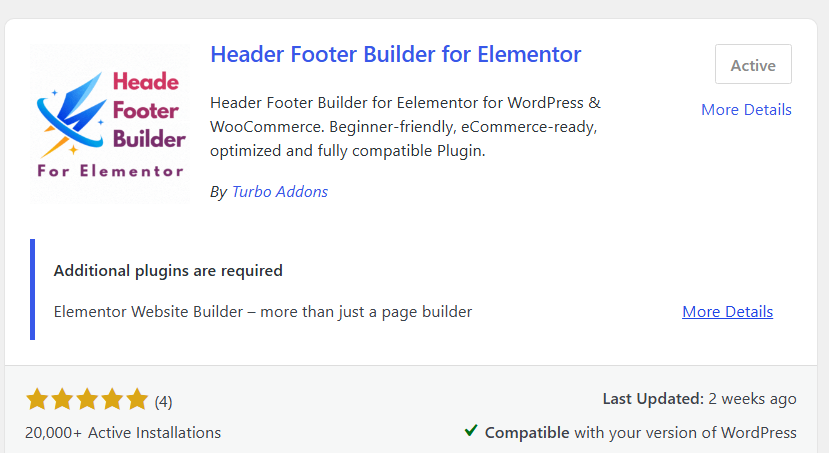
Instead of upgrading to Elementor Pro, I installed a Header Footer Builder for Elementor plugin by (Turbo Addons) compatible with Elementor Free.
This allowed me to:
-
- Create a global footer template
-
- Assign it across my website
-
- Edit the footer from one location
-
- Maintain a consistent brand experience
For small business owners and wellness brands, this is a simple and cost-effective solution.
My First Mistake
When I began creating the minimalist sitewide footer design, I thought I had already saved my footer as a template.
Unfortunately, I had saved my entire homepage instead.
When I opened the template library, I discovered that the template contained:
-
- Hero section
-
- Homepage content
-
- Call-to-action sections
-
- Footer
Everything.
That wasn’t what I needed.
This experience taught me the difference between saving:
-
- An entire page template
- A section template
Working With Containers
Another challenge was that my footer wasn’t built as a single section.
It consisted of:
-
- A divider
-
- A three-column footer layout
-
- A copyright section
Because of this structure, I couldn’t simply save the footer as one template.
Instead, I saved each major footer section separately and inserted them into my sitewide footer template.
It wasn’t the most elegant solution, but it worked.
And sometimes progress is more important than perfection.
The Mystery Divider
One unexpected challenge involved a divider line.
After moving my footer into the global template, the divider refused to display the correct color on the frontend.
Inside Elementor, everything looked correct.
On the live website, it didn’t.
After troubleshooting, testing, and updating settings, I eventually deleted the divider completely.
That’s when I realized something surprising.
The footer actually looked better without it.
The whitespace already provided enough separation between sections.
Removing the divider made the design feel:
-
- Cleaner
-
- More minimalist
-
- More aligned with wellness brands
Sometimes the best design decision is removing an element rather than fixing it.
Why a Sitewide Footer Matters
A footer is more than a design element.
It’s a navigation tool, trust-building element, and branding opportunity.
A well-designed footer helps visitors:
-
- Learn more about your business
-
- Explore additional pages
-
- Contact you easily
-
- Understand your services
For wellness businesses, coaches, and service providers, consistency creates trust.
My Final Footer Structure
Today, my footer includes: MaritesBalili.com
Brand
Marites Balili Studio
Calm and intentional website design for women-led wellness brands.
Navigation
Connect
Footer Bar
-
- Copyright
-
- Privacy Policy
-
- Terms & Conditions
Simple, clean, and easy to navigate.
After assigning the footer template to the entire website, the footer appeared consistently across my homepage, services page, journal posts, and other site pages.
How I Edited My Minimalist Sitewide Footer Design
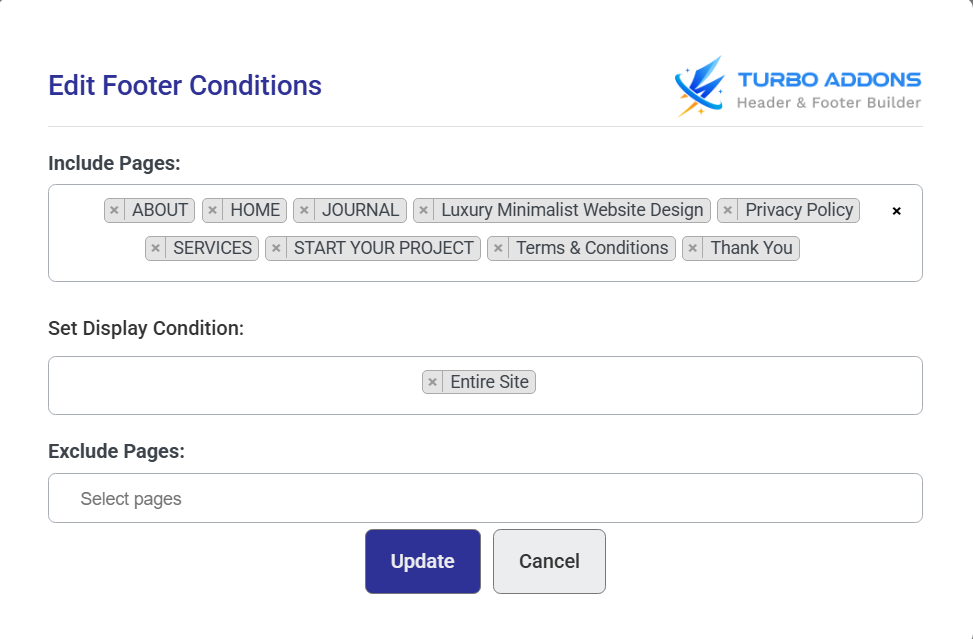
One thing I discovered after creating my sitewide footer is that future edits need to be made through the footer template of Turbo Header Footer Builder located in the WordPress dashboard itself rather than directly on individual pages.
To edit your sitewide footer:
-
From your WordPress dashboard, go to Turbo H&F Builder.
-
Select Footer Templates.
-
Locate your Sitewide Footer and click Edit with Elementor.
-
Make your changes inside Elementor.
-
Click Edit Conditions on the right side of the footer template.
-
The Turbo Footer Conditions popup will appear.
-
Confirm that the footer is assigned to the correct display condition (such as Entire Website).
-
Click Update to save your changes.
Any updates made to the footer template will automatically appear across all pages where the footer is assigned.
What I Learned From Building a Sitewide Footer in Elementor Free
This experience reminded me that creating a thoughtful website is often about solving small problems one step at a time.
While Elementor Free has limitations compared to Elementor Pro, I learned that there are often creative ways to achieve the functionality you need without adding unnecessary complexity.
A few lessons stood out during this process:
-
Elementor Free is powerful when you understand its limitations.
-
Templates and containers can be repurposed creatively to build sitewide elements.
-
A footer should support the user experience, not simply fill empty space.
-
Simplicity often creates a better experience than adding more design elements.
In the end, removing the divider and keeping the footer clean felt more aligned with my brand. The final design is calm, intentional, and functional—exactly the experience I want visitors to have when they explore my website.
Final Thoughts
Creating a sitewide footer in Elementor Free taught me much more than how to solve a technical problem.
It taught me:
-
- The limitations of Elementor Free
-
- The difference between pages and templates
-
- How global website elements work
-
- The value of testing and troubleshooting
-
- Why simplicity often creates better design
If you’re building a website for your wellness business and your footer only appears on one page, don’t assume you need expensive tools.
With the right setup, it’s possible to create a professional sitewide footer using Elementor Free and WordPress.
And sometimes, the challenges we encounter while building our own websites become the lessons that help us serve future clients better.